> ## Documentation Index
> Fetch the complete documentation index at: https://docs.vast.ai/llms.txt
> Use this file to discover all available pages before exploring further.
# Quickstart
> Deploy your first vLLM endpoint
## Prerequisites
Before you begin, make sure you have:
Sign up at [cloud.vast.ai](https://cloud.vast.ai) and add credits to your account
Generate an API key from your [account settings](https://docs.vast.ai/keys)
Create a [HuggingFace account](https://huggingface.co) and generate a [read-access token](https://huggingface.co/settings/tokens) for gated models
## Configuration
### Install the Vast SDK
Install the SDK that you'll use to interact with your serverless endpoints:
```bash theme={null}
pip install vastai_sdk
```
The SDK provides an async Python interface for making requests to your endpoints. You'll use this after setting up your infrastructure.
### API Key Setup
Set your Vast.ai API key as an environment variable:
```bash theme={null}
export VAST_API_KEY="your-api-key-here"
```
The SDK will automatically use this environment variable for authentication. Alternatively, you can pass the API key directly when initializing the client:
```python theme={null}
client = Serverless(api_key="your-api-key-here")
```
### HuggingFace Token Setup
Many popular models like Llama and Mistral require authentication to download. Configure your HuggingFace token once at the account level:
1. Navigate to your [Account Settings](https://cloud.vast.ai/account/)
2. Expand the **"Environment Variables"** section
3. Add a new variable:
* **Key**: `HF_TOKEN`
* **Value**: Your HuggingFace read-access token
4. Click the **"+"** button, then **"Save Edits"**
This token will be securely available to all your serverless workers. You only need to set it once for your account.
Without a valid HF\_TOKEN, workers will fail to download gated models and remain in "Loading" state indefinitely.
## Deploy Your First Endpoint
Navigate to the [Serverless Dashboard](https://cloud.vast.ai/serverless/) and click **"Get Started"**.
Use these recommended settings for your first deployment:
| Setting | Value | Description |
| ---------------------- | --------------- | --------------------------------------------- |
| **Endpoint Name** | `vLLM-Qwen3-8B` | Choose a descriptive name for your endpoint |
| **Cold Multiplier** | 3 | Scales capacity based on predicted load |
| **Minimum Workers** | 5 | Pre-loaded instances for instant scaling |
| **Max Workers** | 16 | Maximum GPU instances |
| **Minimum Load** | 1 | Baseline tokens/second instantaneous capacity |
| **Minimum Cold Load** | 0 | Baseline tokens/second total capacity |
| **Target Utilization** | 0.9 | Resource usage target (90%) |
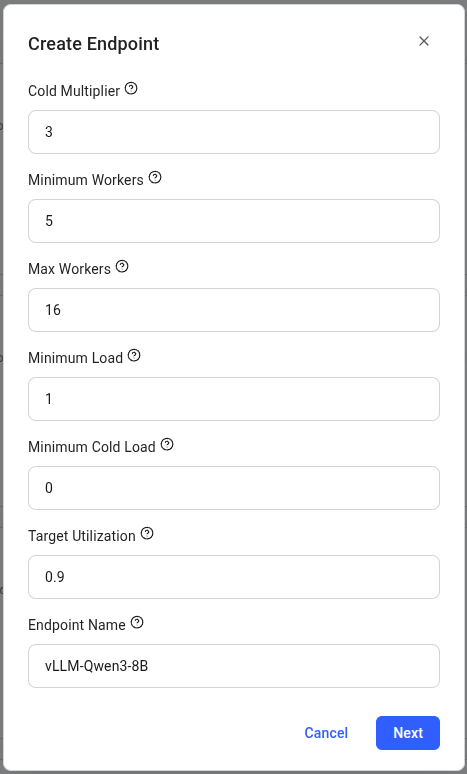 Click **"Next"** to proceed.
You will now be taken to the **Create Workergroup** page.
Select the **vLLM (Serverless)** template, which comes pre-configured with:
* **Model**: Qwen/Qwen3-8B (8 billion parameter LLM)
* **Framework**: vLLM for high-performance inference
* **API**: OpenAI-compatible endpoints
The template will automatically select appropriate GPUs with enough VRAM for the model.
Click **"Next"** to proceed.
You will now be taken to the **Create Workergroup** page.
Select the **vLLM (Serverless)** template, which comes pre-configured with:
* **Model**: Qwen/Qwen3-8B (8 billion parameter LLM)
* **Framework**: vLLM for high-performance inference
* **API**: OpenAI-compatible endpoints
The template will automatically select appropriate GPUs with enough VRAM for the model.
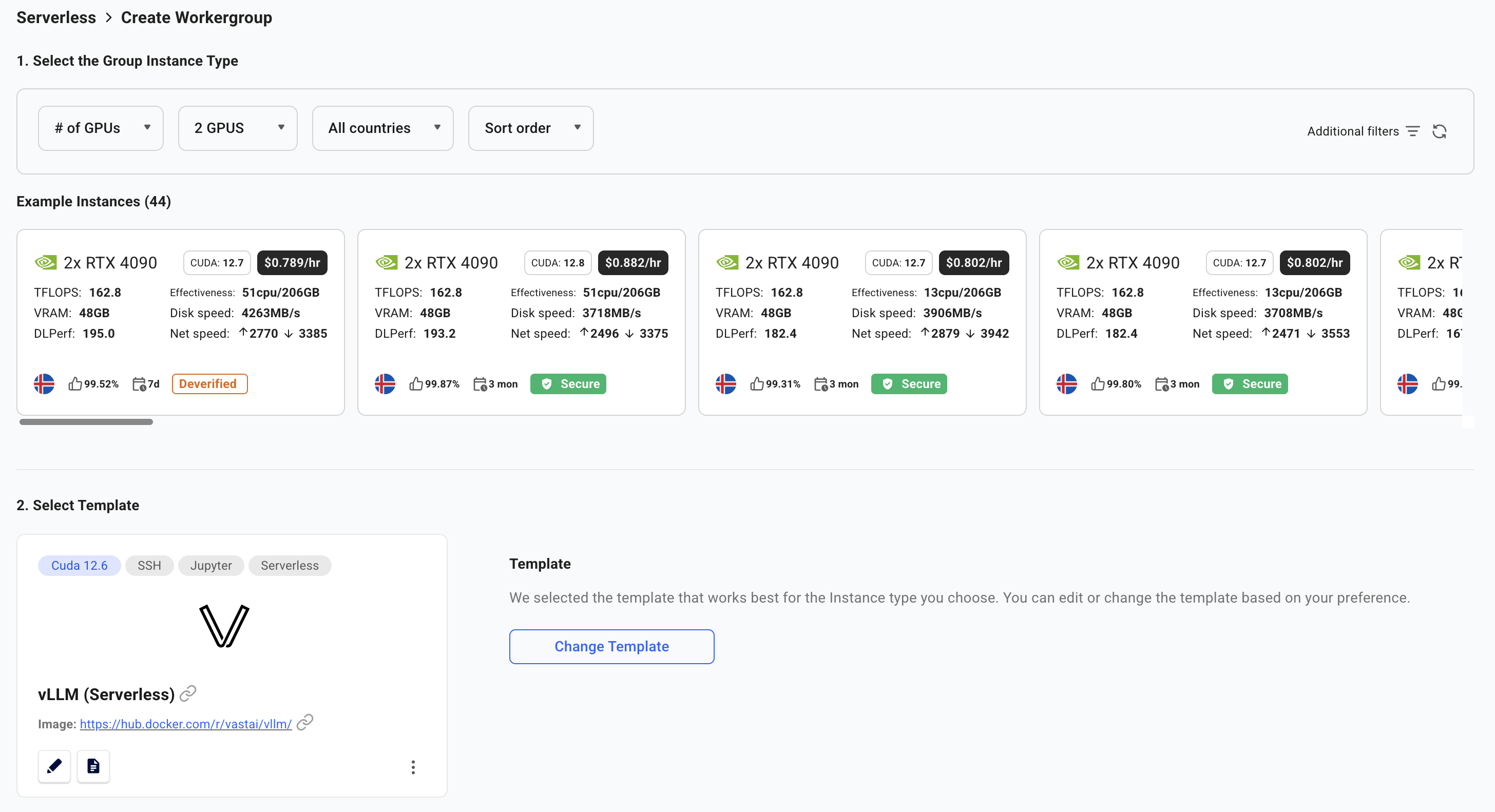 Click **"Create"** to proceed with the default settings.
Your serverless infrastructure is now being provisioned. **This process takes time** as workers need to:
1. Start up the GPU instances
2. Download the model (8GB for Qwen3-8B)
3. Load the model into GPU memory
4. Complete health checks
**Expect 3-5 minutes wait time** for workers to become ready, especially on first deployment. Larger models may take longer.
Monitor the worker status in the dashboard:
* **Stopped**: Worker has the model loaded and is ready to activate on-demand (cold worker)
* **Loading**: Worker is starting up and loading the model into GPU memory
* **Ready**: Worker is active and handling requests
You can view detailed statistics by clicking **"View detailed stats"** on the Workergroup.
Monitor the instance logs to track the loading process:
* Click on the “eye” icon to view the logs for a worker
* Logs show model download progress, loading status, and any startup errors
* This helps identify issues early rather than waiting for timeouts
Click **"Create"** to proceed with the default settings.
Your serverless infrastructure is now being provisioned. **This process takes time** as workers need to:
1. Start up the GPU instances
2. Download the model (8GB for Qwen3-8B)
3. Load the model into GPU memory
4. Complete health checks
**Expect 3-5 minutes wait time** for workers to become ready, especially on first deployment. Larger models may take longer.
Monitor the worker status in the dashboard:
* **Stopped**: Worker has the model loaded and is ready to activate on-demand (cold worker)
* **Loading**: Worker is starting up and loading the model into GPU memory
* **Ready**: Worker is active and handling requests
You can view detailed statistics by clicking **"View detailed stats"** on the Workergroup.
Monitor the instance logs to track the loading process:
* Click on the “eye” icon to view the logs for a worker
* Logs show model download progress, loading status, and any startup errors
* This helps identify issues early rather than waiting for timeouts
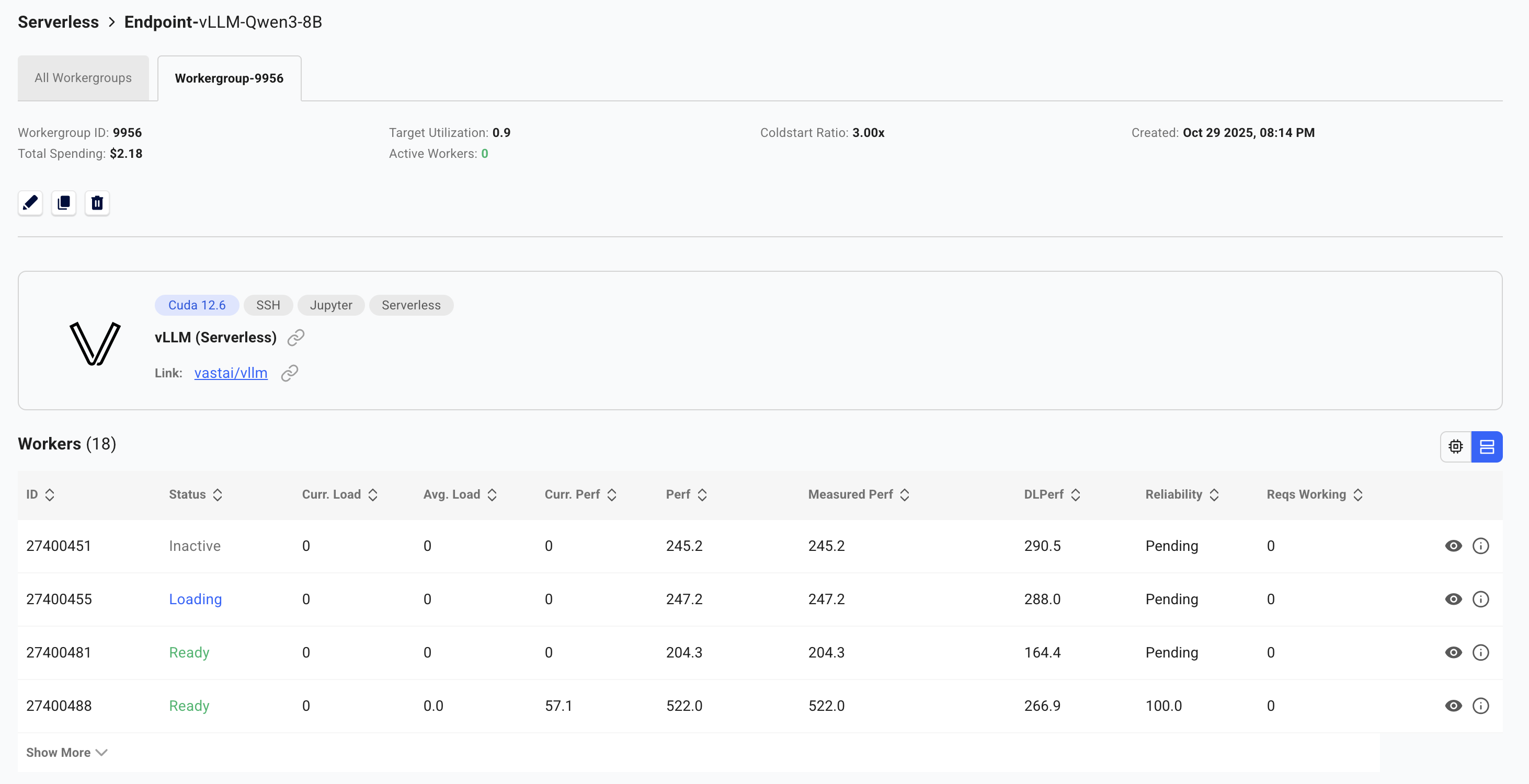 The SDK automatically holds and retries requests until workers are ready. However, for best performance, wait for at least one worker to show "Ready" or "Stopped" status before making your first call.
## Make Your First API Call
### Basic Usage
With the SDK installed, here's how to make your first API call:
```python theme={null}
import asyncio
from vastai import Serverless
MAX_TOKENS = 100
async def main():
# Initialize the client with your API key
# The SDK will automatically use the VAST_API_KEY environment variable if set
client = Serverless() # Uses VAST_API_KEY environment variable
# Get your endpoint
endpoint = await client.get_endpoint(name="vLLM-Qwen3-8B")
# Prepare your request payload
payload = {
"model": "Qwen/Qwen3-8B",
"prompt": "Explain quantum computing in simple terms",
"max_tokens": MAX_TOKENS,
"temperature": 0.7
}
# Make the request
result = await endpoint.request("/v1/completions", payload, cost=MAX_TOKENS)
# The SDK returns a wrapper object with metadata
# Access the OpenAI-compatible response via result["response"]
print(result["response"]["choices"][0]["text"])
# Clean up
await client.close()
if __name__ == "__main__":
asyncio.run(main())
```
The SDK handles all the routing, worker assignment, and authentication automatically. You just need to specify your endpoint name and make requests.
## Troubleshooting
* Check if the GPU has enough VRAM for your model
* Verify your model name is correct
* Check worker logs in the dashboard by clicking on the worker
* Ensure your HF\_TOKEN is properly configured for gated models
* The SDK automatically retries requests until workers are ready
* If this persists, check endpoint status in the [Serverless Dashboard](https://cloud.vast.ai/serverless/)
* Verify workers are not stuck in "Loading" state (see troubleshooting above)
* First request may take longer as workers activate from cold state
* Increase `max_workers` if all workers are full with requests
* Increase `min_load` if there aren't enough workers immediately available when multiple requests are sent
* If there are large spikes of requests, increase `cold_workers` or decrease target utilization
* Consider worker region placement relative to your users
***
**Need help?** Join our [Discord community](https://discord.gg/hSuEbSQ4X8) or check the [detailed documentation](/serverless/architecture) for advanced configurations.
The SDK automatically holds and retries requests until workers are ready. However, for best performance, wait for at least one worker to show "Ready" or "Stopped" status before making your first call.
## Make Your First API Call
### Basic Usage
With the SDK installed, here's how to make your first API call:
```python theme={null}
import asyncio
from vastai import Serverless
MAX_TOKENS = 100
async def main():
# Initialize the client with your API key
# The SDK will automatically use the VAST_API_KEY environment variable if set
client = Serverless() # Uses VAST_API_KEY environment variable
# Get your endpoint
endpoint = await client.get_endpoint(name="vLLM-Qwen3-8B")
# Prepare your request payload
payload = {
"model": "Qwen/Qwen3-8B",
"prompt": "Explain quantum computing in simple terms",
"max_tokens": MAX_TOKENS,
"temperature": 0.7
}
# Make the request
result = await endpoint.request("/v1/completions", payload, cost=MAX_TOKENS)
# The SDK returns a wrapper object with metadata
# Access the OpenAI-compatible response via result["response"]
print(result["response"]["choices"][0]["text"])
# Clean up
await client.close()
if __name__ == "__main__":
asyncio.run(main())
```
The SDK handles all the routing, worker assignment, and authentication automatically. You just need to specify your endpoint name and make requests.
## Troubleshooting
* Check if the GPU has enough VRAM for your model
* Verify your model name is correct
* Check worker logs in the dashboard by clicking on the worker
* Ensure your HF\_TOKEN is properly configured for gated models
* The SDK automatically retries requests until workers are ready
* If this persists, check endpoint status in the [Serverless Dashboard](https://cloud.vast.ai/serverless/)
* Verify workers are not stuck in "Loading" state (see troubleshooting above)
* First request may take longer as workers activate from cold state
* Increase `max_workers` if all workers are full with requests
* Increase `min_load` if there aren't enough workers immediately available when multiple requests are sent
* If there are large spikes of requests, increase `cold_workers` or decrease target utilization
* Consider worker region placement relative to your users
***
**Need help?** Join our [Discord community](https://discord.gg/hSuEbSQ4X8) or check the [detailed documentation](/serverless/architecture) for advanced configurations.